In today’s digital world, remove the background from the logo and creating clean and professional visuals can matter more than anything. If you are creating a website, designing business cards, editing documents, or posting on social media, transparent logos and signatures can improve the appearance of your content. A logo that can have a white background or a scanned signature on plain paper can look unprofessional when it is placed on colored designs or on images.
That’s why most of the people can find an easy way to remove the background from the logos and signatures. The good thing is that you don’t need to know a professional graphic design skill to do this. With modern tools and editing, background removal has become simpler, faster, and accessible for everyone.
In this article, you can learn why background removal is important, different methods to remove the background from the logos and signatures, and many tips to achieve professional-quality results.
Why remove the background from the logos and signatures?
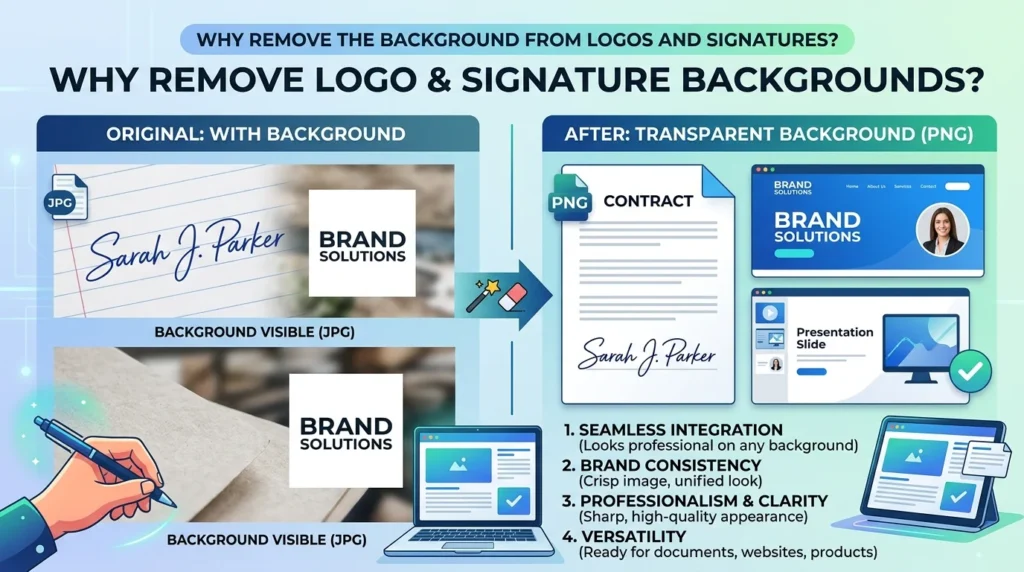
A transparent background makes your logo or signature flexible and visually appealing. Instead of being stuck in a white box, the image blends smoothly into any design or document.
Some major benefits of these are as follows:
1. Professional Appearance:
Transparent logos look clean and modern on websites, presentations, banners, and marketing materials.
2. Better Branding:
A logo that has any background can be used consistently across multiple platforms, including dark and light backgrounds.
3. Easy Document Signing:
Transparent signatures can be inserted into PDFs, invoices, contracts, and official documents without looking awkward.
4. Improved Design Flexibility:
You can place transparent images on photos, colored backgrounds, videos, and social media graphics very easily.
Common File Formats for Transparent Images
Before you can remove a background, it is important to know what kind of file format can support those transparencies. Some popular file format examples are given below:
PNG:
PNG is the most commonly used file format for transparent images. It maintains quality while supporting transparent backgrounds.
SVG:
SVG files are ideal for logos because they are scalable without losing quality.
GIF:
GIF also supports transparency, but it is less suitable for high-quality logos. The important thing to know is that you can never save a transparent image as JPG or JPEG because these formats don’t support transparency.
Methods to Remove Background from Logos and Signatures
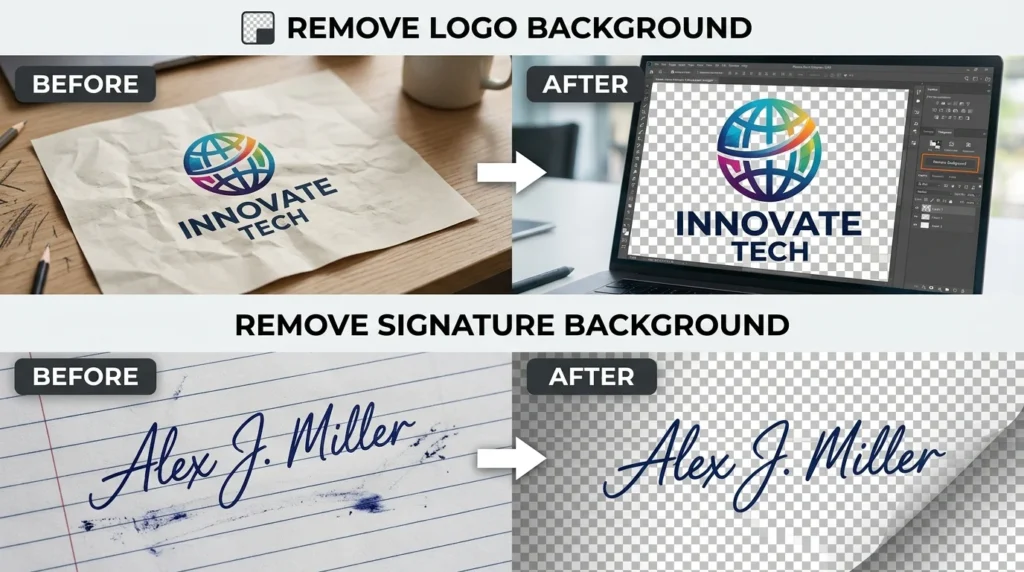
There are many ways to remove a background, depending on your skill level and available tools. Some of the most commonly used methods to remove a background are given in the following:
1. Using Online Background Remover Tools:
Online tools are the easiest and fastest way for beginners to remove a background. Mostly AI-powered tools can easily detect them and remove the backgrounds automatically within seconds.
Steps to Follow:
- Upload your logo or signature image.
- Let the AI detect the background.
- Download the transparent PNG file.
Advantages:
- Beginner friendly
- No software installation required
- Fast processing
- Usually free for basic use
Disadvantages:
- Some tools reduce image quality
- Watermarks may appear on free plans
- Internet connection required
2. Removing Background with Photoshop:
Adobe Photoshop is one of the most powerful tools for the removal of a background. It provides advanced editing features and better control.
Steps for Logos:
- Open the logo image in Photoshop.
- Select the Magic Wand Tool
- Click on the background area.
- Press Delete to remove the background.
- Save the file as PNG.
Steps for Signatures:
- Open the scanned signature.
- Convert the image to black and white if necessary.
- Use the Select Color Range option.
- Remove the white background.
- Export as PNG.
Advantages:
- High-quality results
- Accurate editing
- Ideal for professional work
Disadvantages:
- Requires software installation
- Paid application
- Learning curve for beginners
3. Using Canva for Quick Background Removal:
Canva is extremely popular among content creators and marketers. Its background remover tool can be simpler but effective.
How to Use Canva:
- Upload your image to Canva.
- Click on Edit Image.
- Select Background Remover.
- Download the transparent PNG file.
Best For:
- Social media creators
- Bloggers
- Small businesses
- Quick design projects
3. Removing Background in Microsoft Word:
Many people do not have any idea that Microsoft Word can also include a background removal feature in it. The method given in the following can be used to do simpler tasks and quick editing.
Steps:
- Insert the image into Word.
- Select the image.
- Click “Picture Format.”
- Choose Remove Background.
- Adjust the selection if needed.
- Save the image.
Tips for Better Background Removal
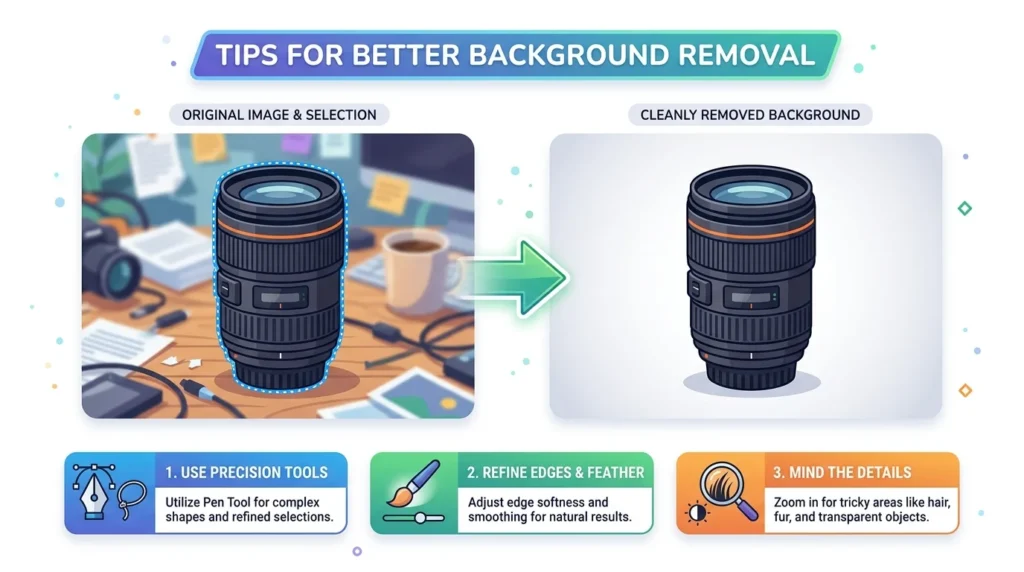
Removing a background may look easy, but actually it’s not because achieving a clean result may require attention to detail. Some important tips to remove a background are given in the following:
Use High-Quality Images:
Always use a high-quality image to get better results; if you can use a low-quality image, then it gives you a rough and blurry result that may spoil the quality of an image.
Choose Simple Backgrounds:
Images with white or plain backgrounds are easier to process.
Zoom In for Fine Edges:
When editing manually, zoom in to clean up corners and edges carefully.
Save in PNG Format:
Always export transparent images as PNGs to preserve transparency.
Avoid Over-Editing:
Too much editing can damage the logo or signature quality.
Free vs. Paid Background Removal Tools:
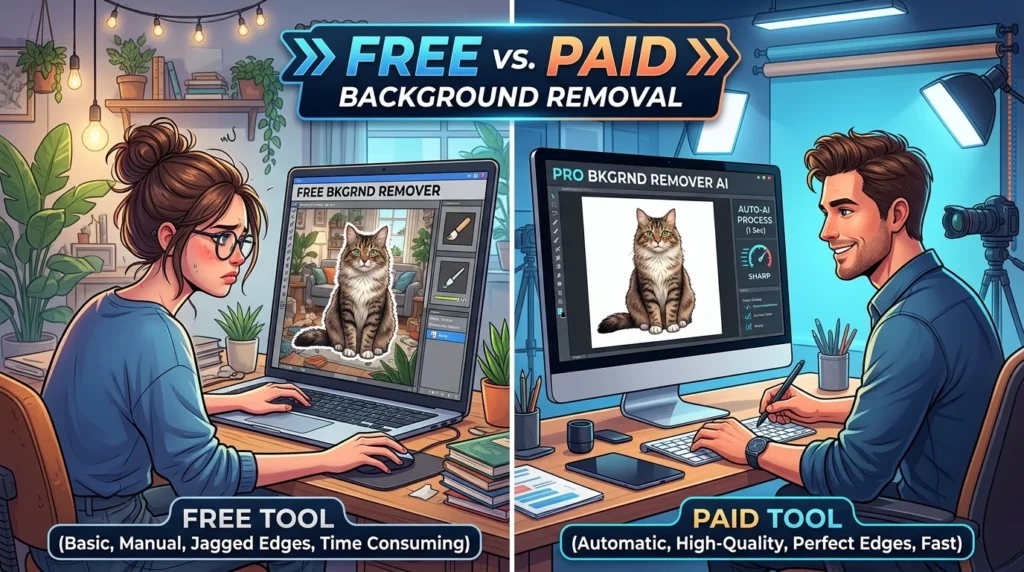
Many users can think about which tool is better for the removal of backgrounds, free or paid. In this article, you should learn about the details of both tools that may help you to answer which tool is better. The details of the following are given below:
Free Tools
Best for:
- Beginners
- Occasional use
- Simple logos and signatures
Limitations:
- Watermarks
- Lower resolution downloads
- Limited editing features
Paid Tools
Best for:
- Businesses
- Designers
- Professional branding
Advantages:
- High-quality exports
- Advanced editing
- Better accuracy
Final Thoughts:
Removing a background from the logos or signature is an essential skill for modern digital work. Transparent images create a clean, professional look and improve flexibility across websites, social media, documents, and marketing materials.
If you choose online AI tools, Photoshop, Canva, or even Microsoft Word, the process has become easier than ever. The key is using high-quality images, selecting the right file format, and paying attention to detail during editing.
For the beginners, an online tool can provide a fast and simple solution. For professionals, advanced software offers a great result by supporting precision and customization. No matter what kind of method you have to choose, a transparent logo or signature can significantly improve your visual presentation and branding.
By following the tips or techniques in this article, you can create clean or professional transparent images that can work perfectly across all digital platforms.