You’re publishing content but have no idea if anyone’s actually reading it. That’s like driving blindfolded, and it’s more common than you’d think.
The good news? Google Analytics for SEO gives you a clear view of what’s working, what’s not, and exactly where your traffic is coming from. In this beginner-friendly guide, you’ll learn how to set it up, read the data, and use it to actually improve your rankings.
No tech degree required. Let’s get into it.
What Is Google Analytics and Why Does It Matter for SEO?
Google Analytics is a free tool from Google that tracks everything happening on your website.
It tells you:
- How many people visited your site
- Which pages they landed on
- Where they came from (Google, social media, direct, etc.)
- How long they stayed and when they left
For SEO specifically, this data is gold. It shows you which keywords and pages are driving organic traffic and which ones need work.
GA4 vs. Universal Analytics: Which One Should You Use?
If you’ve heard of “Universal Analytics” (UA), it’s officially retired. As of July 2023, Google Analytics 4 (GA4) is the only version available.
GA4 is built differently; it focuses on events rather than sessions, and it’s designed for both websites and apps.
Key differences:
- GA4 uses an event-based model (every click, scroll, and page view is an “event”)
- It has stronger privacy controls
- The reporting interface looks different but it’s not as scary as it seems
This guide focuses entirely on GA4, so you’re learning the right thing from day one.
How to Set Up Google Analytics for SEO (Step by Step)
Getting set up takes less than 15 minutes. Here’s how:
Step 1: Create a Google Analytics Account
Go to analytics.google.com and sign in with your Google account. Click “Start measuring” and follow the prompts to create a new property.
Step 2: Set Up a GA4 Property
Enter your website name, time zone, and currency. Then select “Web” as your platform and enter your site’s URL.
Step 3 Add the Tracking Code to Your Site
GA4 gives you a Measurement ID (looks like G-XXXXXXXXXX). Add it to your site using one of these methods:
- WordPress: Use the “Site Kit by Google” plugin; it handles everything automatically
- Manual install: Paste the GA4 script tag into your site’s
<head>section - Google Tag Manager: Paste your Measurement ID into GTM (best for advanced users)
Step 4: Verify It’s Working
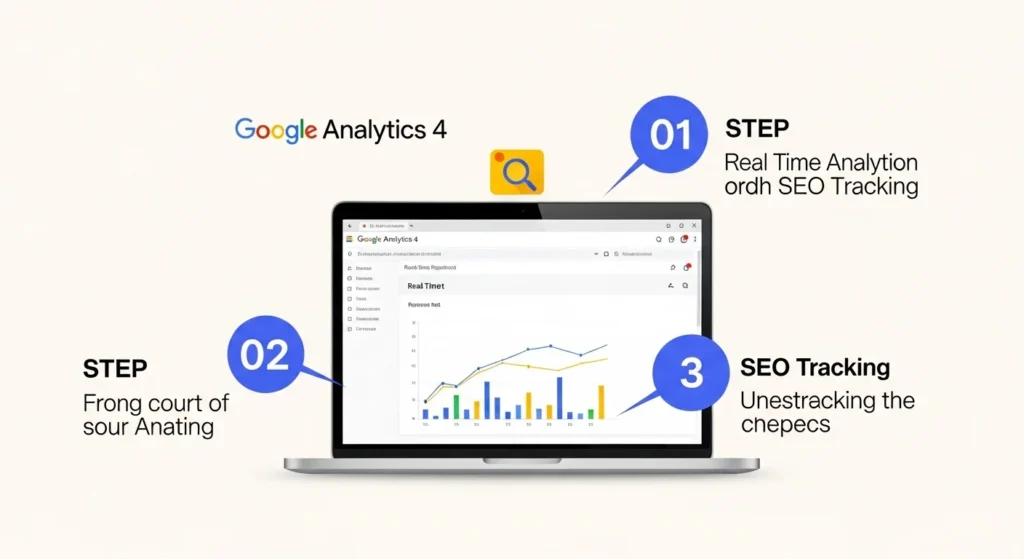
Go back to GA4 and click “Realtime” in the left menu. Open your website in another tab. If GA4 shows active users, you’re live.
The Most Important Google Analytics Reports for SEO
Once you’re set up, these are the reports you’ll actually use for SEO work.
1. Acquisition Overview Report
Where to find it: Reports → Acquisition → Overview
This shows where your traffic is coming from. For SEO, focus on the “Organic Search” channel. Those are visitors coming from Google (and other search engines) without paid ads.
If organic is growing month over month, your SEO is working.
2. Landing Page Report
Where to find it: Reports → Engagement → Landing Page
This shows which pages people land on first when they visit your site. Your top landing pages from organic search are your SEO superstars; they’re already ranking and driving traffic.
Use this to:
- Identify what topics resonate most
- Find pages to optimize further
- Spot pages with high traffic but high bounce rates
3. Engagement Rate Report
Where to find it: Reports → Engagement → Overview
GA4 replaced “Bounce Rate” with “Engagement Rate,” the percentage of sessions where users actually engaged (scrolled, clicked, or stayed 10+ seconds).
A healthy engagement rate is generally above 60%. If it’s lower, your content may not be matching what visitors expected to find.
4. Pages and Screens Report
Where to find it: Reports → Engagement → Pages and Screens
This shows your most visited pages overall. Cross-reference this with your landing page report to see which pages keep people exploring your site after they arrive.
How to Connect Google Analytics with Google Search Console
This is the most underused power move for SEO beginners.
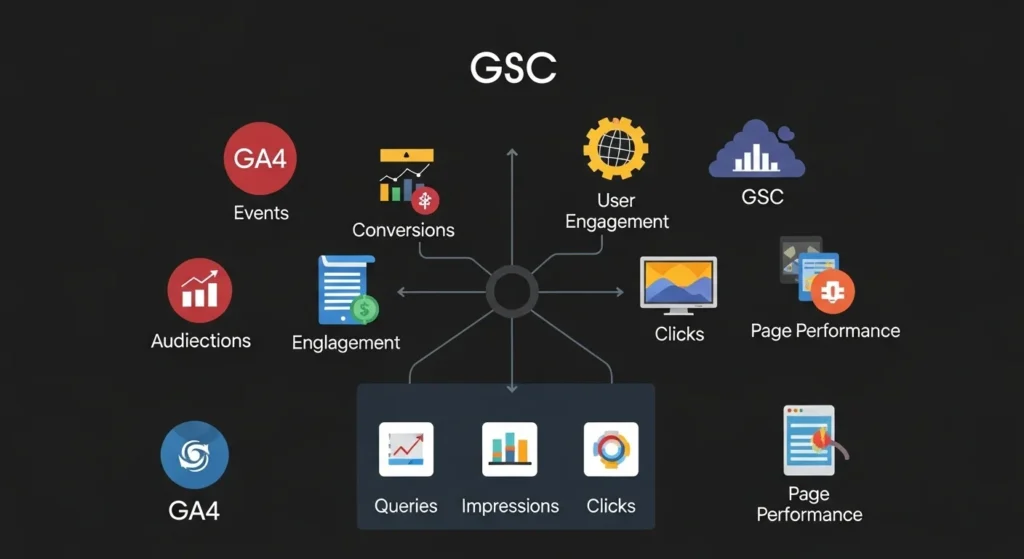
Google Search Console (GSC) shows you what keywords people used to find your site. GA4 alone doesn’t show you this, but linking them together gives you the full picture.
How to link them:
- In GA4, go to Admin → Product Links → Search Console Links
- Click “Link” and select your Search Console property
- Choose the web data stream and confirm
Once linked, you’ll see a new report under Reports → Acquisition → Search Console → Queries showing you the exact keywords driving traffic to each page.
This is how you find keyword gaps and optimization opportunities you’d otherwise miss completely.
Understanding Organic Traffic in Your Guide to Google Analytics for SEO
Organic traffic is the heartbeat of your SEO efforts. Here’s how to track it properly.
How to Isolate Organic Traffic Only
In GA4, go to Reports → Acquisition → Traffic Acquisition. In the dimension drop-down, select “Session default channel group” and look for the Organic Search row.
You can also apply a filter to see only organic traffic data across all reports, which makes analysis much cleaner.
Key Organic Traffic Metrics to Watch
| Metric | What It Tells You |
|---|---|
| Sessions | Total visits from organic search |
| Engaged Sessions | Visits where users genuinely interacted |
| Engagement Rate | % of sessions with meaningful activity |
| Average Engagement Time | How long organic visitors stay |
| Conversions | Goal completions from organic visitors |
How to Find Your Best-Performing SEO Pages
This is one of the most practical things you can do right now.
Step 1: Go to Reports → Engagement → Landing Pages Step 2: Add a filter for Session medium = organic. Step 3: Sort by Sessions (highest first)
You now have a ranked list of pages generating the most organic traffic.
What to do with this data:
- Top pages with high engagement: Leave them mostly alone; Guide 2026 just keep them updated
- Top pages with low engagement rate: Improve the content quality and match search intent better
- Pages with decent traffic but no conversions: Add stronger calls-to-action or internal links
This one exercise can do more for your SEO than weeks of guesswork.
Setting Up Goals and Conversions in GA4
Traffic without conversions is just vanity. GA4 lets you track meaningful actions.
Common SEO conversion goals:
- Newsletter sign-up
- Contact form submission
- Product purchase
- PDF download
- “Read more” clicks to other posts
How to Set Up a Conversion Event
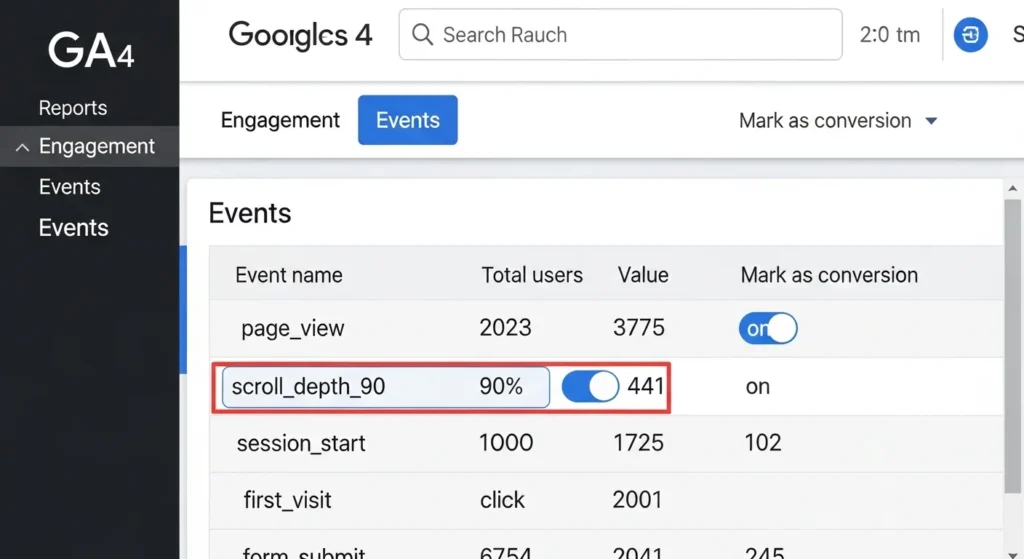
- Go to Admin → Events
- Find an existing event (like
form_submitorfile_download) - Toggle “Mark as conversion” to on
GA4 automatically tracks many events — you just need to flip the conversion toggle on the ones that matter to your business.
Using Audience Reports to Improve Your SEO Content
GA4’s audience data tells you who is visiting, which helps you write better content.
Key audience insights for SEO:
- Demographics (age, gender) Useful if you’re writing for a specific audience
- Geography: See which countries/cities send the most organic traffic; useful for local SEO
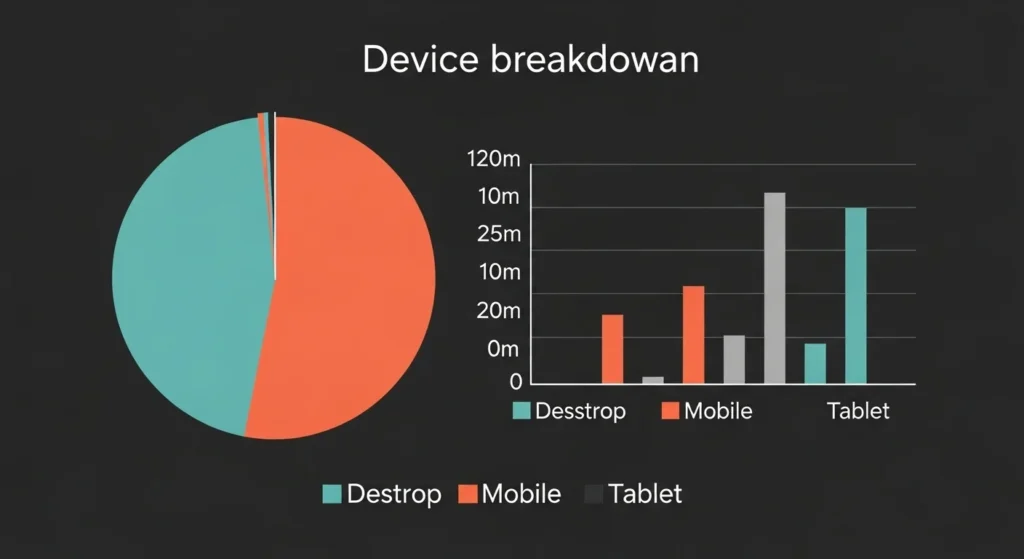
- Device type If most visitors use mobile, prioritize mobile-first formatting
- New vs. returning users: high returning users mean your content is building loyalty
Where to find it: Reports → User → User Attributes → Overview
Use this data to make content decisions. If 80% of your organic visitors are on mobile, your posts need short paragraphs, tap-friendly layouts, and fast-loading images.
Common Google Analytics Mistakes Beginners Make (And How to Avoid Them)
Even with the best tool in the world, bad habits lead to bad insights.
Mistake 1: Ignoring your own visits Your own traffic can inflate numbers. Set up an internal traffic filter under Admin → Data Streams → Configure Tag Settings → Define Internal Traffic.
Mistake 2: Looking at data too early. GA4 needs at least 4–6 weeks of data before you can spot meaningful trends. Don’t make big decisions on 3 days of numbers.
Mistake 3 Only watching total traffic Total traffic includes direct, social, paid, and referral, not just organic. Always filter by channel when doing SEO analysis.
Mistake 4 Never checking mobile performance Over 60% of global web traffic is mobile. If your mobile engagement rate is terrible, your rankings will suffer; Google prioritizes mobile experience.
Conclusion
Google Analytics can feel overwhelming at first, but you don’t need to master every report on day one.
Start simple. Set it up, connect Search Console, and check your organic traffic and landing pages once a week. That habit alone will put you ahead of most bloggers and small business owners.
As you get more comfortable, layer in conversion tracking, audience analysis, and deeper engagement reports. The data is already there; you just need to start reading it.
Ready to take the next step? Open your GA4 dashboard right now and find your top 3 organic landing pages. Then ask yourself, how can I make these even better? That’s where real SEO growth begins.
FAQs
Q1: Is Google Analytics free to use for SEO? Yes, Google Analytics 4 is completely free. Google does offer a premium version called GA4 360 for enterprise-level businesses, but for bloggers, small businesses, and most websites, the free version has everything you need for thorough SEO analysis.
Q2: What’s the difference between Google Analytics and Google Search Console for SEO? They’re complementary tools, not alternatives. Google Analytics tells you what happens with your site traffic, behavior, and conversions. Google Search Console tells you what happens before users arrive: keywords, impressions, and click-through rates. Use both together for the full SEO picture.
Q3: How long does it take to see SEO results in Google Analytics? SEO is a long game. Most new content takes 3–6 months to rank meaningfully on Google. In GA4, you’ll start seeing some organic traffic sooner if your site has existing authority but track month-over-month trends rather than week-to-week fluctuations for more accurate insights.
Q4: Can I use Google Analytics 4 without knowing how to code? Absolutely. Using the Site Kit by Google plugin (for WordPress) or connecting through Google Tag Manager, you can set up GA4 without touching a single line of code. The setup wizard inside GA4 also walks you through every step.
Q5: How do I know if my SEO is actually improving using Google Analytics? Track these key indicators month over month: organic sessions (should increase), average engagement time (should improve), engagement rate (should rise above 60%), and conversions from organic traffic (should grow). If these metrics trend upward consistently over 3–6 months, your SEO strategy is working.