
Here’s a brutal truth: if your website takes more than 3 seconds to load, over half your visitors are already gone.
They didn’t bounce because your content was bad. They left because your page was slow. And Google noticed too.
Learning how to improve website page speed is no longer optional it’s one of the most direct ways to boost your SEO rankings, reduce bounce rates, and keep visitors happy. In this guide, you’ll get a complete, no-fluff roadmap to diagnose and fix your slow website starting today.
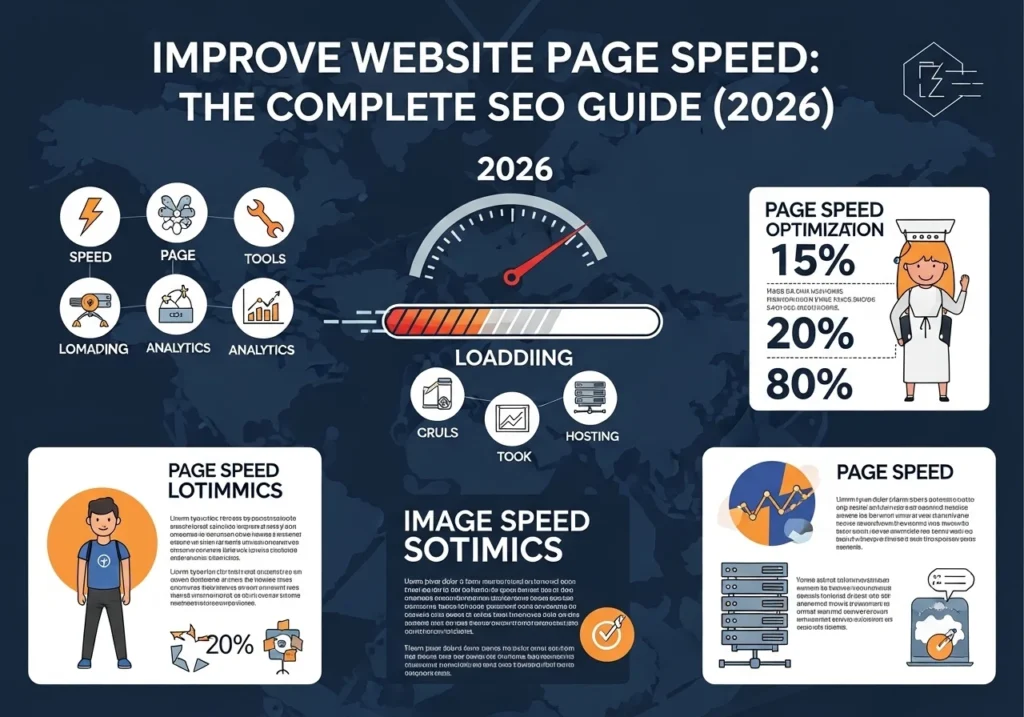
Why Website Page Speed Matters More Than Ever
Speed isn’t just about user experience it’s a direct Google ranking factor.
Since Google’s Core Web Vitals update, page speed officially affects where your site appears in search results. A slow site loses rankings. A fast site gains them. It really is that simple.
Here’s what the data says:
- 53% of mobile users abandon a site that takes longer than 3 seconds to load (Google)
- A 1-second improvement in load time can increase conversions by up to 7% (Akamai)
- Pages that load in 1–2 seconds have the highest conversion rates in e-commerce
- Amazon calculated that a 100ms delay costs them 1% in sales
The bottom line? Every second counts literally.
How to Test Your Website Page Speed First
Before fixing anything, you need to know exactly what’s broken. Use these free tools to diagnose your site’s performance:
Top Page Speed Testing Tools
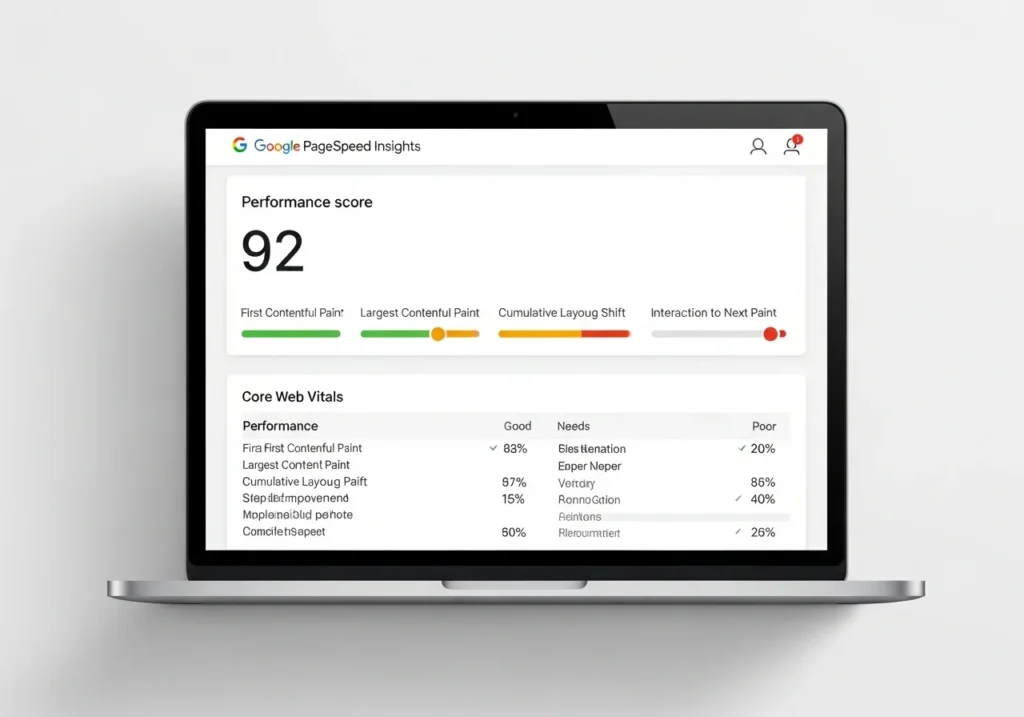
1. Google PageSpeed Insights
- Free, from Google itself
- Scores your page 0–100 for mobile and desktop
- Gives specific, actionable recommendations
- URL: pagespeed.web.dev
2. GTmetrix
- Detailed waterfall chart showing every resource load time
- Grades your site A–F
- Lets you test from different global locations
3. WebPageTest
- Advanced testing with filmstrip view
- Shows exactly what loads at which millisecond
- Great for developers
4. Chrome DevTools (Lighthouse)
- Built into Chrome browser
- Press F12 → Lighthouse tab → run audit
- Covers performance, SEO, accessibility, and best practices
How to Improve Website Page Speed: 10 Proven Methods
This is the core of the guide. Each fix below is actionable, tested, and ranked by impact.
Optimize and Compress Your Images
Images are almost always the #1 reason websites load slowly. A single uncompressed photo can be 5–10MB that’s enormous.
What to do:
- Compress images before uploading using TinyPNG, Squoosh, or ShortPixel
- Convert images to WebP format 25–35% smaller than JPEG with no quality loss
- Use lazy loading so images only load when the user scrolls to them
- Always define image dimensions in your HTML to prevent layout shifts
WordPress users: Install Smush or Imagify to automate this process entirely.
Enable Browser Caching
Browser caching stores static files (images, CSS, JS) on your visitor’s device after their first visit.
When they return, the browser loads those files locally instead of re-downloading everything. Result? Blazing fast repeat visits.
How to enable caching:
- On WordPress: Use W3 Total Cache or WP Rocket
- On Apache servers: Add caching rules to your
.htaccessfile - On Nginx: Configure cache headers in your server config
- Via CDN (like Cloudflare): Caching is handled automatically
Use a Content Delivery Network (CDN)
A CDN stores copies of your website on servers around the world.
When someone in Tokyo visits your US-hosted website, they get served from the nearest Tokyo server not from New York. This cuts load time dramatically for global audiences.
Best CDN options:
| CDN | Best For | Price |
|---|---|---|
| Cloudflare | Most websites, easy setup | Free plan available |
| BunnyCDN | Budget-friendly, fast | From $1/month |
| Fastly | Enterprise / high-traffic | Custom pricing |
| Amazon CloudFront | AWS users | Pay per use |
Minify CSS, JavaScript, and HTML
Every unnecessary space, comment, and line break in your code adds to your file size. Minification strips all that away without changing how the code works.
What minification does:
- Removes whitespace and line breaks
- Shortens variable names
- Combines multiple files into one
- Reduces file sizes by 10–30%
How to minify:
- WordPress: WP Rocket, Autoptimize, or LiteSpeed Cache
- Manual tools: CSS Minifier, JSCompress, HTML Minifier
- Build tools: Webpack, Vite, or Gulp for developers
Reduce HTTP Requests
Every element on your page images, scripts, stylesheets, fonts requires a separate HTTP request. More requests = slower load time.
How to cut requests:
- Combine multiple CSS files into one
- Combine JavaScript files where possible
- Remove unused plugins and scripts
- Use CSS sprites for small icons
- Eliminate unnecessary third-party scripts (chat widgets, tracking pixels, etc.)
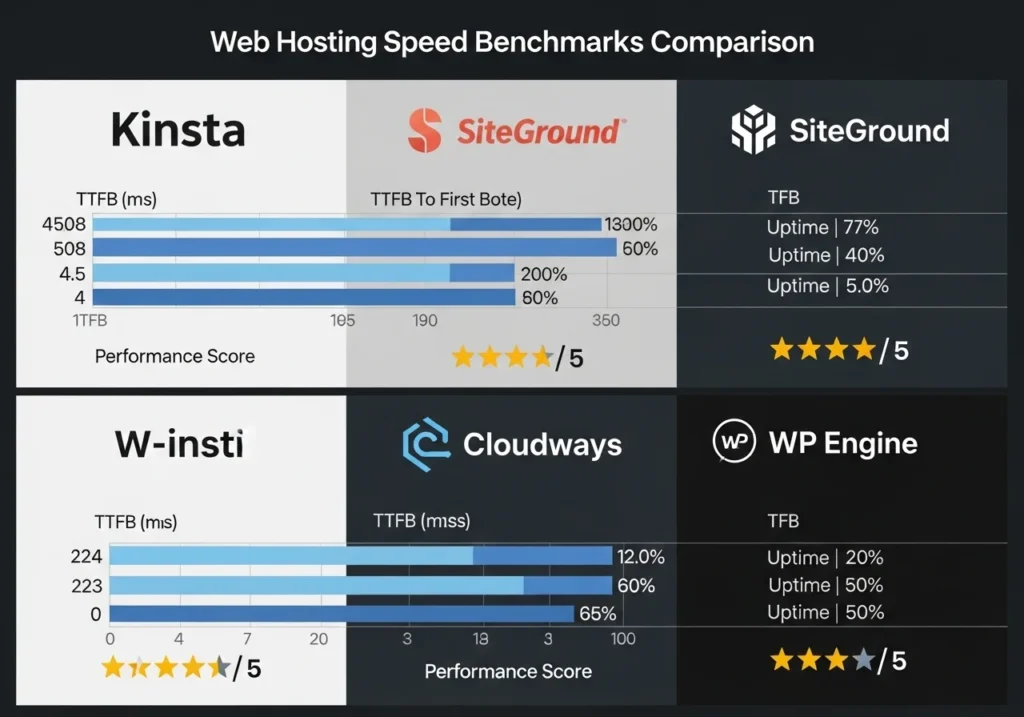
Choose Fast, Quality Web Hosting
Here’s the uncomfortable truth: no amount of optimization can fix bad hosting.
If your server response time (TTFB , Time to First Byte) is over 600ms, your host is the problem.
What to look for in hosting:
- Server location close to your audience
- SSD storage (not traditional HDD)
- PHP 8.x support
- HTTP/2 or HTTP/3 protocol
- LiteSpeed or Nginx (faster than Apache)
Recommended hosts for speed:
- Kinsta managed WordPress, lightning fast
- SiteGround excellent for beginners, great speed
- Cloudways cloud hosting on Google/AWS/DigitalOcean
- WP Engine premium managed WordPress
Optimize Your Core Web Vitals
Google’s Core Web Vitals are three specific speed metrics that directly impact your search rankings:
LCP Largest Contentful Paint
- Measures how long the main content (largest image or text block) takes to load
- Target: Under 2.5 seconds
- Fix: Optimize hero images, use a CDN, improve server response time
FID / INP First Input Delay / Interaction to Next Paint
- Measures how quickly your page responds to the first user interaction
- Target: Under 100ms
- Fix: Reduce JavaScript execution time, remove render-blocking scripts
CLS Cumulative Layout Shift
- Measures how much elements jump around as the page loads
- Target: Under 0.1
- Fix: Define image/video dimensions, avoid dynamically injected ads
Reduce Render-Blocking Resources
When a browser loads your page, CSS and JavaScript files can block it from displaying content until they fully load. These are called render-blocking resources.
How to fix render-blocking:
- Add
deferorasyncattributes to JavaScript tags - Move non-critical JavaScript to the bottom of the page
- Inline critical CSS (the CSS needed for above-the-fold content)
- Load non-essential CSS asynchronously
<!-- Instead of this: -->
<script src="script.js"></script>

<!-- Use this: -->
<script src="script.js" defer></script>
Enable GZIP or Brotli Compression
Text-based files (HTML, CSS, JS) can be compressed before being sent to the browser, then decompressed instantly on arrival. This can reduce file transfer sizes by 70–90%.
Two compression options:
- GZIP older standard, universally supported, very effective
- Brotli newer, 20–26% better compression than GZIP, supported by all modern browsers
How to enable:
- Cloudflare: Brotli compression is enabled by default
- WordPress: W3 Total Cache or WP Rocket handles this
- cPanel hosting: Enable via
.htaccessor Optimize Website tool - Check if it’s working at: checkgzipcompression.com
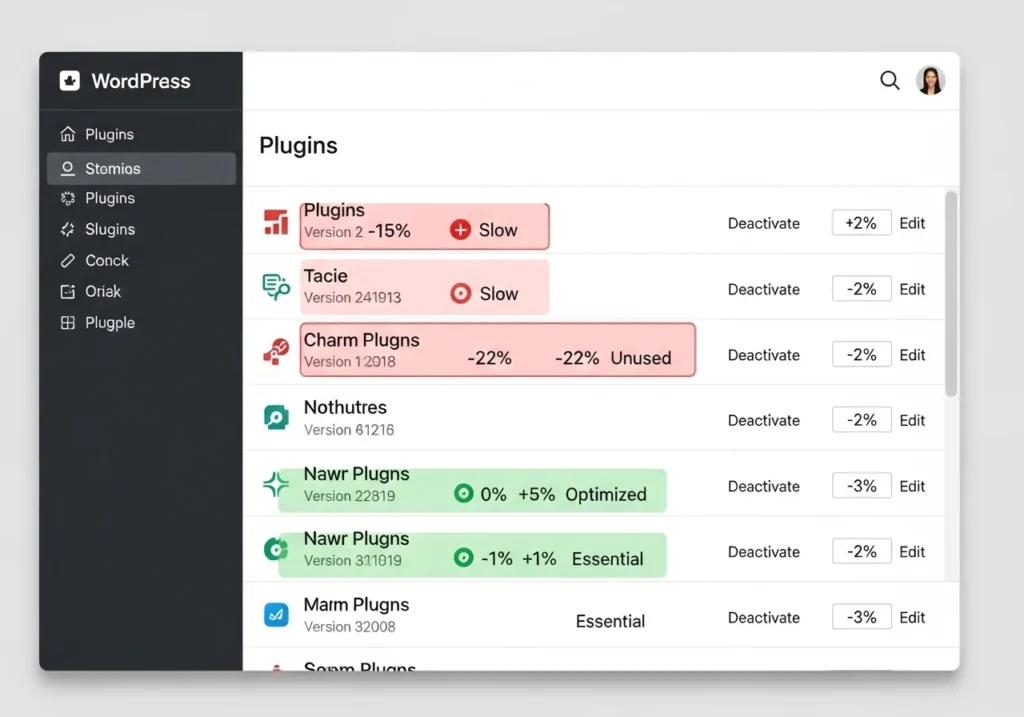
Limit and Audit Your Plugins
If you’re on WordPress, every plugin adds code. Too many plugins = too much code = slow site.
Plugin audit checklist:
- Remove plugins you haven’t used in 6+ months
- Replace multiple single-purpose plugins with one multi-purpose solution
- Delete deactivated plugins (they still add files)
- Replace page builders (Elementor, Divi) with lighter alternatives if possible
- Use Query Monitor to identify which plugins slow down specific pages
Website Page Speed Optimization Checklist
Print this out. Pin it. Use it every time you build or audit a site:
Images:
- [ ] All images compressed and in WebP format
- [ ] Lazy loading enabled
- [ ] Image dimensions defined in HTML
Code:
- [ ] CSS, JS, HTML minified
- [ ] Render-blocking resources removed
- [ ] GZIP or Brotli compression enabled
Server & Hosting:
- [ ] Fast hosting with low TTFB
- [ ] CDN configured and active
- [ ] Browser caching enabled with proper expiry headers
CMS (WordPress):
- [ ] Caching plugin installed and configured
- [ ] Plugins audited under 15 active
- [ ] Database optimized and cleaned
Core Web Vitals:
- [ ] LCP under 2.5 seconds
- [ ] CLS under 0.1
- [ ] INP under 100ms
Conclusion
A slow website isn’t just annoying it’s actively costing you traffic, rankings, and revenue.
The good news? Most speed problems are fixable. Here’s your rapid-action recap:
- Test your speed with PageSpeed Insights and GTmetrix
- Compress and convert all images to WebP
- Enable caching and GZIP compression
- Set up a CDN (Cloudflare free tier is perfect to start)
- Minify CSS, JS, and HTML
- Reduce HTTP requests and remove bloat
- Upgrade to fast, quality hosting if needed
- Fix your Core Web Vitals using Search Console data
You don’t need to do all 10 fixes at once. Start with images and caching those two alone can dramatically improve your website page speed and make an immediate difference to your SEO.
Frequently Asked Questions (FAQs)
What is a good website page speed score?
On Google PageSpeed Insights, a score of 90–100 is excellent, 50–89 needs improvement, and below 50 is poor. For SEO purposes, aim for at least 75+ on mobile and 85+ on desktop. Focus more on the actual metric values (LCP, CLS, INP) than the overall score number.
How does page speed affect SEO rankings?
Page speed is an official Google ranking factor. Since the 2021 Page Experience update, Google’s Core Web Vitals (LCP, CLS, INP) directly influence search rankings. Faster pages rank higher, experience lower bounce rates, and earn better user engagement signals all of which reinforce SEO performance.
How can I improve website page speed without a developer?
Absolutely possible. Start with these no-code steps: install a caching plugin (WP Rocket or LiteSpeed Cache), run all images through TinyPNG or Smush, connect your site to Cloudflare’s free CDN, and remove unused plugins. These four actions alone can cut load time by 30–50% on most WordPress sites.
What is a good page load time for SEO?
Google recommends pages load in under 2.5 seconds for the Largest Contentful Paint (LCP). For overall page load, under 3 seconds is the benchmark though under 2 seconds is ideal for competitive niches. The faster, the better, especially on mobile.
Does web hosting really affect page speed?
Yes significantly. Your hosting determines your Time to First Byte (TTFB), which is how fast your server starts responding. Budget shared hosting can have TTFB of 1–2 seconds, eating your entire speed budget before a single image loads. Quality managed hosting (Kinsta, SiteGround, Cloudways) typically delivers TTFB under 200ms.